Using the Portal to Submit a Ticket
- Overview:
Vertech provides a client support portal designed to streamline communication, track support needs, and maintain full visibility into all your open and historical tickets. This guide walks you through how to access the portal, submit tickets, and manage your support activity.
- Accessing the Portal:
Depending on your organization’s configuration, the portal may allow either:
- Full access with login, or
- Anonymous access (limited features but still allows ticket submission)
Creating an Account:
If your portal requires login credentials:
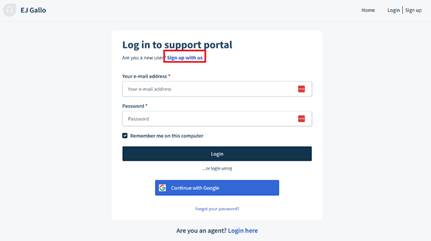
- Click Sign Up in the upper‑right corner. If you accidentally click Log In, simply switch to the Sign-Up option.
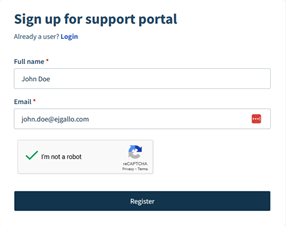
- Enter your full name and company email address. Using your company email is important—it links your profile to the correct organization.
- Check your inbox for a verification email. Click the link and follow the instructions to set your password. This ensures identity verification, prevents spam accounts, and increases security.
Once your account is created and verified, you can log in and access all portal features.
- Submitting Tickets & Using the System:
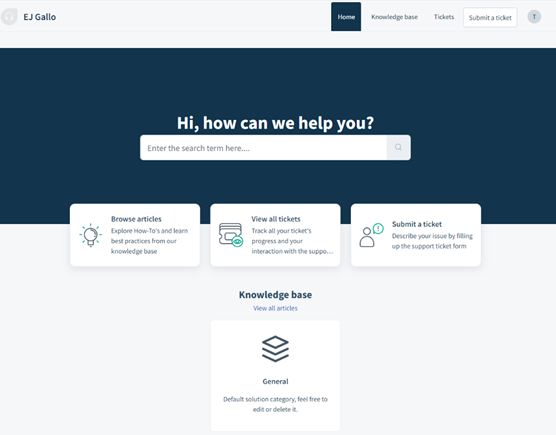
After logging in, you will see the main dashboard - your centralized hub for:
- Submitting new tickets
- Tracking existing issues
- Browsing knowledge articles
- Managing communication with Vertech engineers
If you choose not to log in, you can still submit a new ticket, but with limited visibility.
- How to Submit a Ticket:
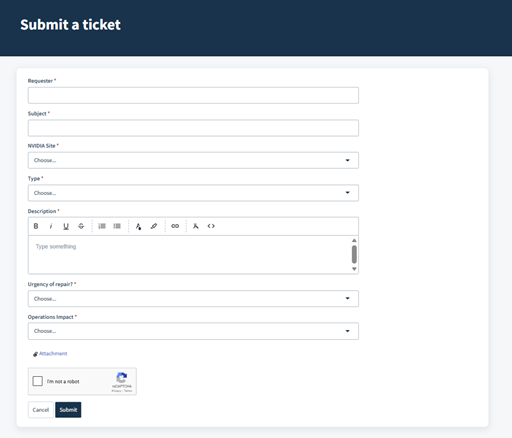
You can submit a ticket using any “Submit a Ticket” link in the portal.
Steps to Submit a Ticket:
- If anonymous: Enter your work email address so we can reach you.
- Add CC recipients who should be included in the communication.
- Select the site where the issue is occurring.
- Enter a clear Subject that summarizes the issue for the engineering team.
- Provide a detailed Description including:
- Key details
- Steps to reproduce
- Screenshots, logs, or relevant attachments
- Specify priority fields:
- Operations Impact (Impact):
- High: Production stopped
- Medium: Reduced capability
- Low: No operational impact
- Urgency of Repair (Urgency):
- How quickly the issue needs attention (separate from impact), This is slightly different than impact, especially for things such as access issues, data problems, or less severe screen issues.
Providing complete and accurate information ensures your issue can be resolved more quickly.
- Knowledgebase Resources:
The portal includes a Knowledgebase section where you can browse help articles, FAQs, and best practices. These resources often provide quick answers and solutions without needing to submit a ticket.
- Ticket Notifications & Communication:
Once you submit a ticket:
- You and all CC’d recipients will receive an email from a vertech.com address with the ticket details.
- You can reply directly to these emails to add comments or attachments.
- You will receive automatic updates as the ticket progresses.
The portal and email system stay fully synchronized - use whichever method is more convenient.
- Viewing and Managing Existing Tickets:
You must be logged in to view your ticket list.
Individual Ticket View:
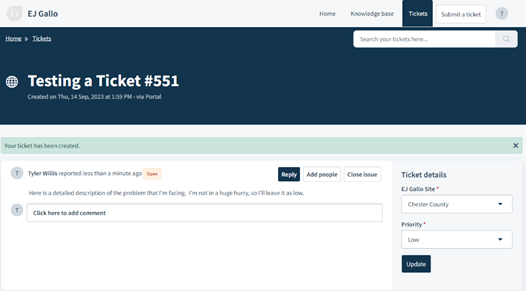
After submitting a ticket, you’ll be directed to its detail screen where you can:
- Add comments
- Update fields
- Upload files
- Add or remove CC’d team members
- Close the ticket when resolved
View All Tickets:
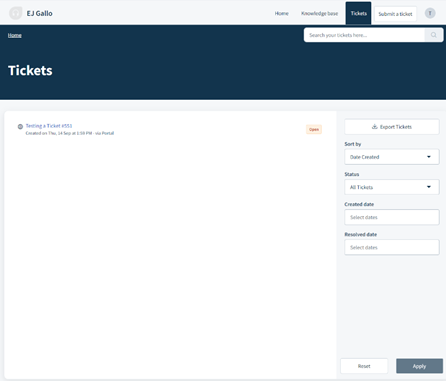
To see a full list of your organization’s tickets:
- Navigate to Tickets or View All Tickets, From there, you can:
- Filter by status, date, site, assignee, and more
- Export results to Excel
- Quickly locate active, pending, or resolved tickets
This makes it easy to track the entire history of support activity for your team.
Was this article helpful?
That’s Great!
Thank you for your feedback
Sorry! We couldn't be helpful
Thank you for your feedback
Feedback sent
We appreciate your effort and will try to fix the article